Cruising and Trip Planning
Chesapeake Bay Cruising Guide: Routes, Destinations, Travel Times & Float Plan Planning
Choose a manageable part of the Bay, research the actual harbor approaches, and turn a destination list into daily legs your boat and crew can handle. This guide connects those decisions to FPW's route builder, distance overrides, fuel estimates, timing and Float Plan workflow.
Reviewed . Check current conditions and operating information before departure.
1. Planning a Chesapeake Bay cruise
Start with a cruising area, not a checklist of famous towns. Annapolis and the central Eastern Shore, the Patuxent area around Solomons, and the lower Bay around Deltaville, Yorktown and Norfolk offer different combinations of open-Bay travel and river approaches. A town can look close across land while the usable water route runs around a peninsula or well into a tributary.
Choose the departure harbor, the time available and the crew's preferred daily underway limit. Then identify specific arrival points. A town name is useful for choosing a region; the entrance and berth or anchoring area determine the last part of the route. Separate the outward and return legs and keep time to revise the plan.
Season changes the planning problem. NOAA describes warm-season thunderstorms and frontal storms, while winter ice can affect some tributaries. Review the actual forecast instead of treating a season or an early departure as a guarantee. Daylight, crew comfort and access to a suitable stopping place also constrain the travel day. See NOAA Coast Pilot 3 weather guidance and its western Chesapeake coverage.
Prepare one worksheet per day: verified route distance, realistic cruising speed, expected delays, fuel requirement, arrival window and an earlier alternative. A manageable first cruise often means fewer destinations and more time to understand the boat and the approaches.
2. Chesapeake cruising destinations
These geographic starting points help you research a stop. They do not confirm a berth, fuel supply, available depth or an anchorage. Before committing, ask the intended operator about current access, vessel suitability, reservations and arrival arrangements.
Annapolis
Plan the Severn River approach and the actual waterfront destination, including whether it lies in Spa Creek. Include the harbor approach in your mileage. The Annapolis Harbormaster's docking information is the starting point for municipal arrangements; NOAA chapter 13 provides navigation context.
St. Michaels and Oxford
St. Michaels' main waterfront is on the Miles River, approached through Eastern Bay. Oxford is on the Tred Avon River, with waterfront facilities along Town Creek. Select the intended side and facility before measuring either approach. Their proximity on a road map does not create a navigable shortcut. Research both in NOAA's Eastern Shore chapter; the Oxford waterfront plan adds local context.
Cambridge
Cambridge is on the Choptank River. Distinguish the municipal yacht basin near the mouth of Cambridge Creek from a destination farther inside the creek. Check whether the chosen berth introduces a bridge dependency. Use the city's marina information and current navigation references to research the actual arrival point.
Solomons
Research the Patuxent River approach and the specific creek or facility; Back Creek and Mill Creek are distinct waterfront areas. An endpoint simply called Solomons is not enough for final distance or approach planning. See NOAA chapter 13 for geographic and navigation context.
Deltaville
Deltaville lies between the Rappahannock and Piankatank rivers, with boating destinations in separate creeks and harbors. Select the harbor first, then research its entrance and the intended operator. The Deltaville Community Association boating directory helps identify candidates; it does not verify today's access or availability.
Yorktown and Norfolk
Yorktown's waterfront is on the York River. Confirm vessel suitability and arrival arrangements with the Riverwalk Landing Dockmaster, and check whether your selected route needs bridge passage. Norfolk's downtown waterfront is on the Elizabeth River. Plan to a particular marina, allow for harbor traffic and review NOAA's Norfolk-area navigation context together with current notices.
3. Illustrative Chesapeake itineraries
These are destination sequences, not calculated passages. No distances or transit times are assigned. Measure the navigable legs and test them against your vessel, forecast, daylight and daily travel limit before deciding whether an example fits.
Weekend: Oxford, Cambridge and return
Consider Oxford to Cambridge, one overnight, then return to Oxford. Check whether each reviewed leg fits comfortably, including the harbor approaches and return-day weather. Shorten the trip if either day is too demanding.
3 days: Annapolis and St. Michaels with a stay day
Consider Annapolis to St. Michaels, a stay day, then return. Keep the middle day flexible. A layover can be more useful than adding another destination merely because a day is available.
7 days: a focused central-Bay exploration
Explore the Annapolis, Eastern Bay and Choptank area, considering St. Michaels, Oxford and Cambridge as candidate stops. Assign travel days only after reviewing every leg. Reserve layover or weather time and omit stops when the verified itinerary exceeds the crew's limits.
For a lower-Bay vacation, choose a departure base and investigate a smaller group of lower-Bay stops instead. Do not try to combine all eight destinations in this guide into a fixed week. A faster boat may reduce running time, but speed alone does not resolve weather, approach, fuel or stopping constraints.
4. Build a Chesapeake route using FPW
Route planning requires an FPW account and the dashboard's Getting Started information. Save the vessel, operator, shore contact and at least two waypoints first. Check the waypoint coordinates and names against your intended endpoints. Add passengers when applicable.
Practice example: the screenshots use Annapolis, Solomons and Norfolk to demonstrate a start, an intermediate stop and a destination. Catalog city points are not verified harbor approaches. This is not a recommended itinerary, daily schedule or navigable path, and the displayed practice figures must not be used for passage planning.
- Open the Route Generator. From the dashboard, choose + Create Route and enter a descriptive Route Name. Under My Routes & Waypoint Builder, enter or check the name in Create Route, then choose Create.
- Set departure. Select the saved departure under Route Start Waypoint and choose Set Start.
- Add the intermediate stop and destination. Under Add Leg by Waypoint, select the next saved waypoint and choose Add Leg. Repeat in travel order. Each added leg continues from the previous endpoint.
- Choose the vessel and assumptions. Select the correct Vessel. Review speed, fuel-burn inputs, Pace, Adjusted Speed and Underway Hrs / Day. Confirm the planner speeds are in knots: the vessel editor currently labels its speed fields KPH, so do not assume a conversion.
- Load the proposed route. Choose Load to populate Route Summary and Legs and the Cruise Timeline. Inspect each leg's endpoints and NM, then the total distance, travel hours and estimated fuel.
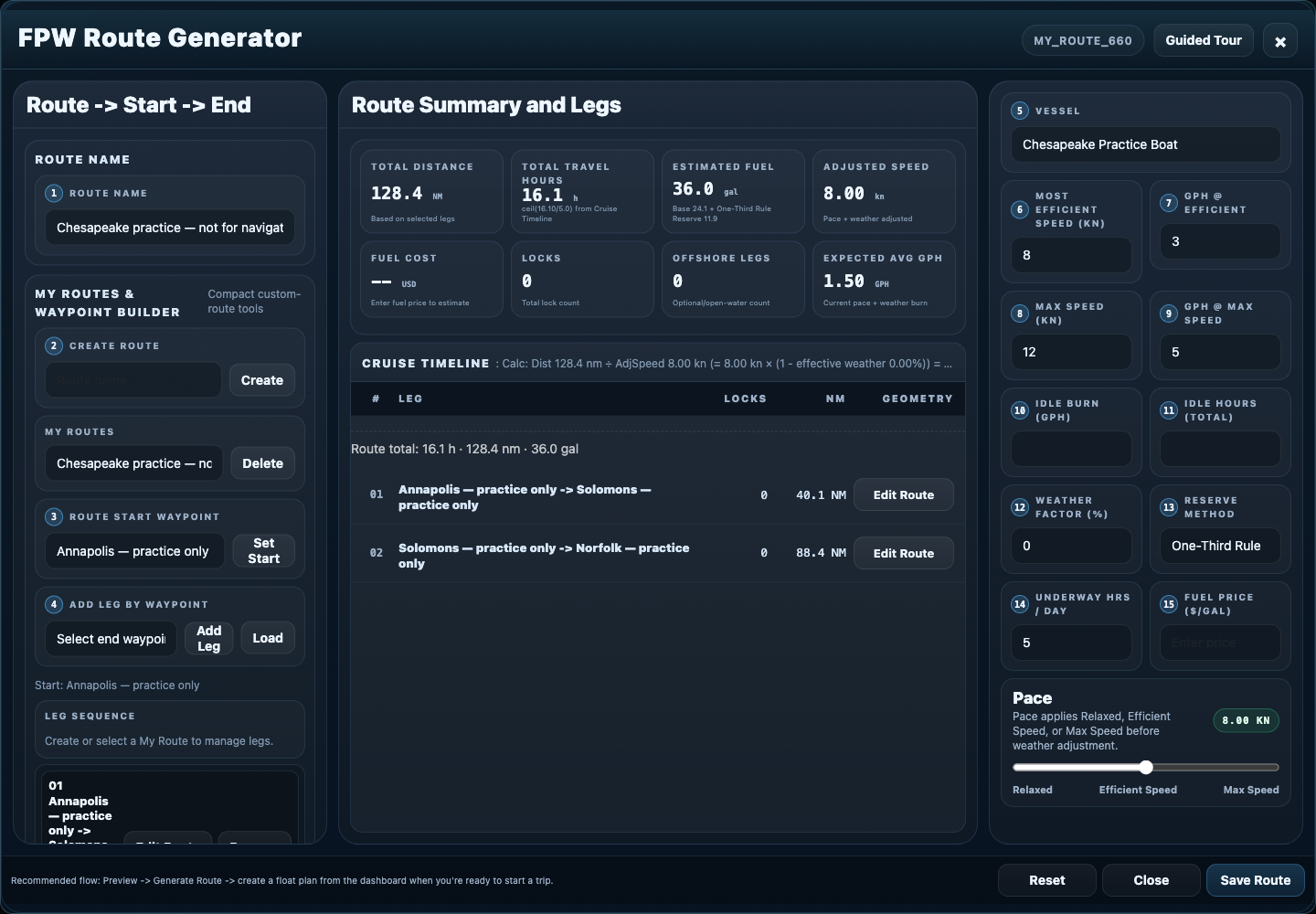
Review the path before trusting the mileage
A new waypoint leg may begin with a direct line between coordinates. That distance can omit channel bends, a river entrance, the intended harbor approach or a deliberate detour. An apparently precise number does not prove the line follows navigable water.
FPW's mileage override is a geometry edit, not a numeric mileage box. First establish the intended navigable path using current navigation information. Then use the map to represent that reviewed path:
- Choose Edit Route beside the leg to open Leg Geometry. Check the leg title, source and Computed NM.
- Use Draw a polyline for a new path or Edit layers for an existing line. Finish the map edit, inspect its endpoints and intermediate points, and review the recalculated Computed NM.
- Choose Save Overrides. Completing the drawing alone does not save it. Close the panel and inspect the leg's effective NM and override indication.
- Choose Load for the selected My Route again. Review the refreshed distance, timing and fuel estimates with the intended vessel and daily hours. There is no separate Recalculate Timing button in this workflow.
- Review the complete itinerary and choose Save Route. Check the saved route before preparing the Float Plan.

A geometry change does not move the destination or verify hazards. For different stops, revise the waypoint sequence and review the connecting legs again. Do not assume an existing Float Plan or the separate public Fuel Calculator inherits the change.
This opens the planning workspace through the existing sign-in/setup flow. It does not import the example or create a Chesapeake route automatically. For broader instructions, see the FPW User Manual and Great Loop Trip Planning Guide.
5. Calculate fuel requirements
Use the corrected navigable distance and your vessel's realistic performance at the chosen speed. Review saved vessel specifications instead of accepting a default burn rate. Load the route again after changing distance or planning inputs, then compare its fuel estimate with the usable fuel aboard.
The separate public Boat Fuel Calculator requires you to enter the trip's distance and relevant vessel figures. It does not automatically import the route, a geometry override or your saved vessel. Transfer the reviewed values and repeat the calculation after route changes.
Keep cruising consumption, any explicit idle allowance and the selected reserve method distinct. A longer route can increase required fuel and reduce your remaining margin. Higher speed may change fuel burn; use figures appropriate to that operating condition. Weather and loading can also make an optimistic performance assumption unsuitable.
Reserve fuel should remain available for uncertainty and alternatives. Check the calculator's chosen method and displayed result; do not confuse an extra allowance with permission to use all usable fuel. Confirm any planned refueling stop directly and revise the day if the boat cannot reach a suitable alternative with the intended margin.
6. Estimate arrival times realistically
Cruising time is the time spent covering the route at the assumed speed. Elapsed travel time also includes stops, waiting, maneuvering and delays. Keep those categories visible so a plausible running-time estimate does not become an unrealistic arrival promise.
Hypothetical arithmetic only: 30 nautical miles divided by 6 knots equals 5 cruising hours. Those inputs do not describe a Chesapeake leg. Stops and delays would extend elapsed time, and a different speed or reviewed distance changes the result.
In FPW, review Adjusted Speed, Total Travel Hours, Underway Hrs / Day and the Cruise Timeline. Reload the My Route after a geometry change. A timeline day boundary is a time-budget result, not a verified marina or safe stopping place. Choose real endpoints that fit the day.
Allow separately for the stops and conditions your voyage requires. An idle-fuel input is not evidence that every delay has been scheduled. Recheck the Float Plan's departure, return time and timezone after editing the route; an earlier draft may still contain earlier expectations.
Open your saved route in the planning workspace, review its assumptions and use Load to inspect the estimates.
7. Weather, tides and currents
Check each marine forecast zone crossed, including river approaches. A town forecast or a single weather icon cannot represent the whole trip. Use the National Weather Service's Baltimore/Washington marine zones and Wakefield marine zones to locate relevant forecasts and warnings.
Consider wind direction as well as strength, the exposed portions of the route, visibility and thunderstorm risk. Leave room to delay departure, stay another night or choose a shorter day. Review conditions again before leaving and as the trip develops.
Tide predictions concern water level; current predictions concern flow. Do not assume slack current occurs at high or low water. Use the relevant location and time from NOAA current predictions and read NOAA's explanation of tides and currents.
Astronomical tide predictions do not include all wind, pressure and river-flow effects. NOAA's Chesapeake Bay Operational Forecast System provides modeled water-level and current guidance. A model forecast is not an observation or a certification of clearance.
Members can open FPW's Marine Weather Briefing after signing in. Review the location, available products and timestamps. Use official sources where information is missing or needs confirmation. A forecast does not verify channel depth, an obstruction, bridge clearance or anchoring permission; those require current navigation information.
8. Overnight stops and alternate plans
Choose the night's endpoint before accepting the day's mileage. For a marina, confirm the actual arrival point, reservation, access and vessel suitability directly. For an anchoring candidate, research charted conditions, swing room, exposure, local rules and an escape option. An online pin or library entry does not verify suitability today.
Research an earlier stopping option and an alternative if the intended destination is unavailable. Compare the distance to both, the remaining daylight and fuel, and the conditions on their approaches. An alternative that requires an unfamiliar approach after dark may not solve the original problem.
Keep the timetable flexible enough to stay put when conditions are unsuitable. Update the planned route and shore contact when the destination or arrival expectation changes. FPW's Ports Library and Anchorage Library can support research; their entries are starting points for verification.
9. Create a Chesapeake Float Plan
After saving the reviewed route, return to the dashboard's Routes list. Select the route and choose Draft Float Plan in its details, or use the route-row Activate Route action. This prepares a draft and opens the Float Plan Wizard; an existing draft can be reopened with Complete Float Plan. Preparing that draft is separate from sending a plan or beginning an operational trip.
- Complete any requested sender name, then confirm the vessel and operator. Include the passengers who will actually be aboard.
- Review the itinerary against the saved route, including the intended departure, destination and stopping points.
- Check departure and return dates, times and timezone. Resolve any mismatch with the route's latest distance and schedule.
- Select the intended shore contact and verify the contact details. Agree on expected check-ins, how changes will be communicated and what to do if you are overdue.
- Review the finished plan. Save Float Plan saves a draft; use the separate send action when ready to share and read its explanation before proceeding.

Saving a route, preparing a Float Plan draft, sharing it and activating or monitoring a trip are distinct steps. Available send choices can have different effects; follow the description shown for the chosen action. Do not treat a saved route or draft as proof that anyone has received the current plan.
Confirm receipt with the shore contact, keep them informed when the plan changes, and close the loop when safely arrived. Read why a float plan helps and the Shore Contact Guide together.
Continue through the planning workspace and your saved route. This link does not send a plan or start monitoring.
10. Chesapeake cruising FAQ
How long does a Chesapeake Bay cruise take?
There is no single duration. Choose an area, measure the navigable legs and apply the boat's realistic speed, stops and weather margin. A weekend can focus on one overnight destination; a week still requires choices.
Where should a first-time Chesapeake cruiser start?
Start with a manageable area near the departure base and a small number of researched stops. Favor a plan with clear approaches, practical alternatives and time to stay another night.
How much fuel should I plan to carry?
Calculate consumption from corrected distance and appropriate vessel performance, include relevant idle allowances, and preserve the selected reserve. Confirm usable fuel and refueling arrangements; a generic gallons-per-mile figure cannot represent every boat.
What if rough weather disrupts the itinerary?
Reconsider the exposed legs and the timing before departure. Delay, shorten the day or stay put when needed. Update the route, arrival expectation and shore contact rather than trying to recover a fixed sightseeing schedule.
What is a reasonable daily mileage?
Work backward from comfortable underway hours at a realistic speed, then allow for approaches and delays. Check that the endpoint is a suitable stop. FPW's daily hours are a planning input, not a universal cruising recommendation.
Does FPW generate a verified navigable Chesapeake route?
No. Build the waypoint sequence and review every leg. Geometry overrides describe your reviewed path and calculate its mileage; they do not certify depth, clearance or safe passage.
Does saving a route create and send my Float Plan?
No. Save and review the route, open its Float Plan workflow, check the trip details and use the appropriate separate sharing action. Confirm your shore contact has the current information.
Sources and planning references
Geographic and weather context was checked against the sources linked in this guide. Operational conditions can change. Return to current publications, charts, forecasts and local operators when preparing the actual trip.
- NOAA United States Coast Pilot: coastal geography, approaches and navigation context; the relevant chapter links appear beside the destination guidance.
- NOAA nautical charts and chart updates: current chart information for independent route verification.
- U.S. Coast Guard Maritime Safety Information: current navigation notices and related safety information.
- NWS Baltimore/Washington marine weather and NWS Wakefield marine zones: official forecast coverage for the relevant waters.
- NOAA tides and currents guidance and Chesapeake Bay model guidance: prediction limitations and regional forecast products.
For another detailed example of reviewing route geometry, daily timing and fuel, Explore the Great Loop Guide.